Migrating Default Agentforce Agents
- Agentforce, Salesforce, CRM
- June 28, 2025
Table of Contents
Info
Salesforce is retiring the built-in Agentforce (Default) agent. This post explains why, how the new migration tool works, and what you still need to do manually when moving to an Agentforce Employee Agent (AEA).
Why You Need to Migrate Your Default Agentforce Agent
Salesforce’s Agentforce framework is evolving. The next phase is the Agentforce Employee Agent (AEA) — Salesforce’s new standard for internal AI agents that help employees handle CRM tasks with less friction.
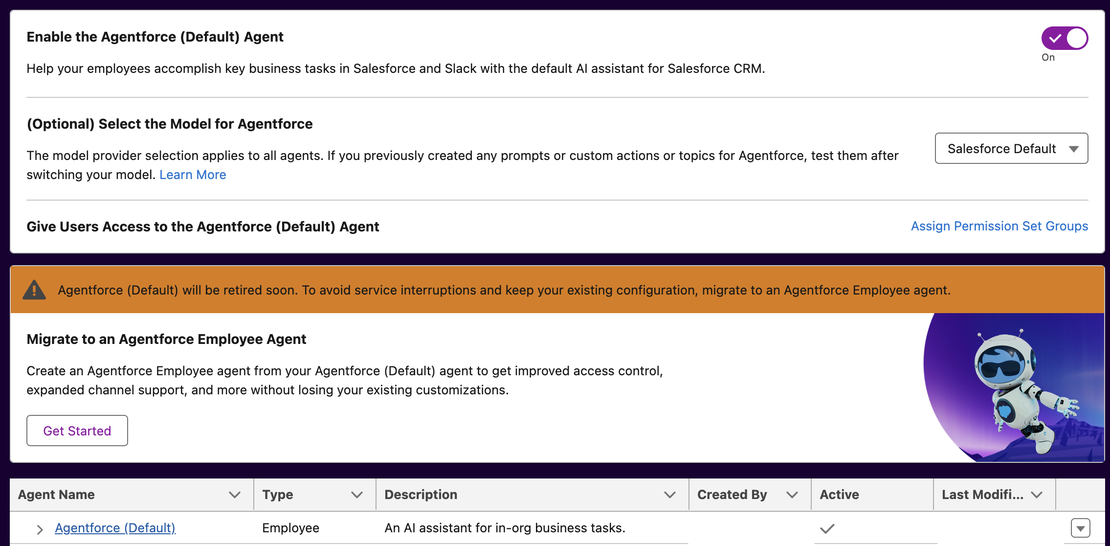
If you’re still using the Agentforce (Default) agent, you’ll now see a banner in Setup warning that it will be retired soon. Beginning June 17, 2025, Salesforce will stop providing new enhancements to the default agent type, and it’s no longer available for creation in new Salesforce environments.
To avoid service interruptions and keep your existing configuration, Salesforce provides a guided migration tool that creates a new Agentforce Employee Agent for you. You don’t start from scratch, but you do need to review and clean up a few pieces after migration.
What’s Actually Changing?
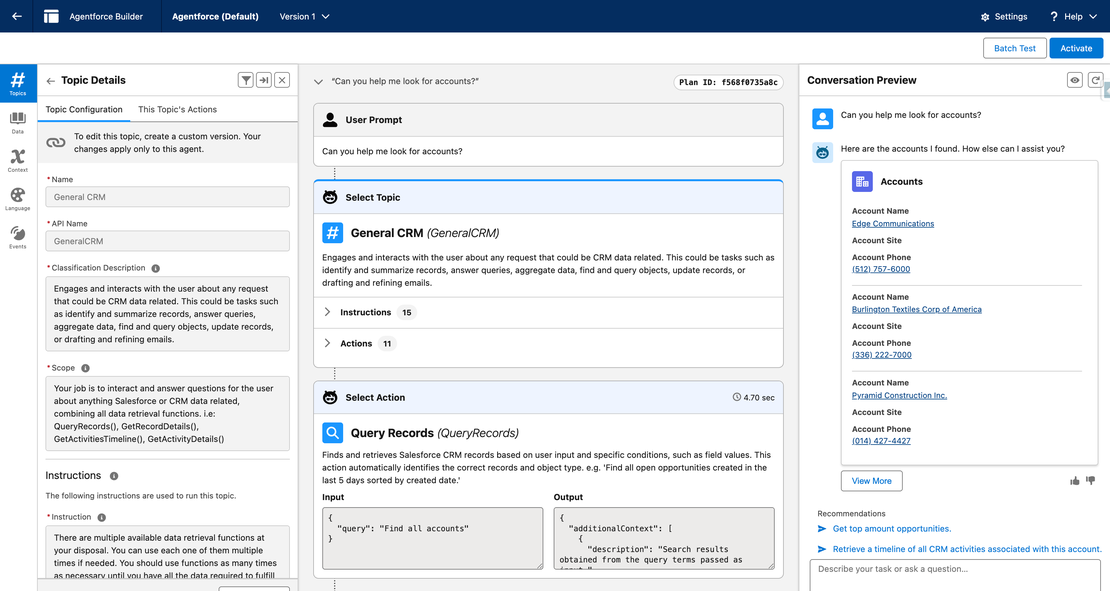
The original Agentforce (Default) agent made it easy to spin up a basic internal AI assistant for common tasks like record lookups, updates, and summaries. It was built on an older orchestration model.
The Agentforce Employee Agent (AEA) framework keeps the same core idea—an internal assistant for your users—but moves it to Salesforce’s newer architecture:
- Improved access control and trust layer integration
- Expanded channel support (Salesforce UI, Slack, and more)
- Better orchestration for multi-step tasks
- A foundation that will continue to be supported as new AI features roll out
Custom agents you’ve built separately aren’t automatically removed, but if they rely on the older patterns the default agent used, it’s worth planning their migration to AEA over time.
Before You Start: Requirements and Limitations
A few important details from Salesforce’s documentation:
- You must have the required add-on license and Flex Credits provisioned for Agentforce Employee Agents.
- If Flex Credits aren’t provisioned, you won’t see the “Get Started” migration button in Setup.
- The migration tool copies topics, actions, and most configuration from your Agentforce (Default) agent into the new Employee Agent.
- Some things don’t migrate:
- Custom prompts you created outside the default structure
- Renamed actions (for example, if you changed labels/names after creation)
- Visibility settings, such as permission sets or profiles controlling who can use the agent
Plan ahead to recreate or re-apply those pieces after the migration completes.
How the Built-In Migration Tool Works
You don’t manually rebuild the agent anymore. Instead, Salesforce gives you a guided flow in Setup that creates a new Agentforce Employee Agent with your existing default configuration as the starting point.
Step 1 – Open the Agentforce Agents Page
- In Salesforce Setup, in the Quick Find box, search for Agents.
- Select Agentforce Agents.
- At the top of the page, you’ll see:
- A toggle to Enable the Agentforce (Default) Agent
- A warning banner that Agentforce (Default) will be retired
- A “Migrate to an Agentforce Employee Agent” section with a Get Started button
If you don’t see Get Started, double-check that your org has the required add-on and Flex Credits provisioned.
Step 2 – Start the Migration
- Click Get Started under Migrate to an Agentforce Employee Agent.
- When prompted, enter a Name and API Name for your new Employee Agent.
- Use something clear like
Agentforce Employee (Internal)or align with your internal naming standards.
- Click Create.
Salesforce now runs the migration in the background with no downtime required. It usually completes in a few minutes.
Step 3 – Review the New Agentforce Employee Agent
When the migration finishes:
- A new Agentforce Employee agent appears in Agent Builder.
- It includes the topics, actions, and most configurations from your Agentforce (Default) agent at the time you clicked Create.
- The original Agentforce (Default) agent remains, but it’s now effectively your source template and will eventually be retired.
At this point, you’ll want to:
- Open the new Employee Agent in Agent Builder
- Confirm the topics and actions you expect are present
- Verify that your channel settings and integrations look correct
What You Still Need to Do Manually
The migration tool gets you 80–90% of the way there. The rest is review and cleanup.
1. Recreate Custom Prompts
If you built custom prompts or prompt templates that weren’t part of the standard default agent configuration:
- Recreate them in the new Employee Agent
- Re-attach them to the appropriate topics or flows
- Re-test multi-step logic or deeper prompt chains
2. Fix Renamed Actions
If any actions were renamed after creation:
- Check that the migrated actions are labeled correctly
- Update action names for consistency
- Re-bind actions to topics where necessary
3. Reapply Visibility and Access Controls
The migration doesn’t automatically copy user access rules including:
- Permission sets or profiles that determine who can use the agent
- Any custom access logic you implemented around the default agent
You should:
- Create or update permission sets or permission set groups
- Assign them to the appropriate roles or teams
- Confirm that only intended users see and can use the new Employee Agent
4. Validate Channels and Integrations
If your default agent was used in multiple places (for example, Salesforce UI or Slack):
- Confirm that the new Employee Agent is referenced in each channel
- Update embedded deployments or app pages that referenced the default agent
- Re-run your end-to-end tests:
- Can users start a conversation?
- Do actions run as expected?
- Are Trust Layer permissions for flows and Apex classes correct?
Creating Additional Employee Agents from the Default Configuration
One helpful detail in Salesforce’s migration flow:
- Each time you click Get Started, Salesforce creates another Employee Agent seeded from your Agentforce (Default) agent’s current configuration.

This makes it easy to:
- Use Agentforce (Default) as a temporary template while it’s still available
- Create multiple Employee Agents for different groups or workflows
- Customize each Employee Agent independently
You can also create new Employee Agents manually:
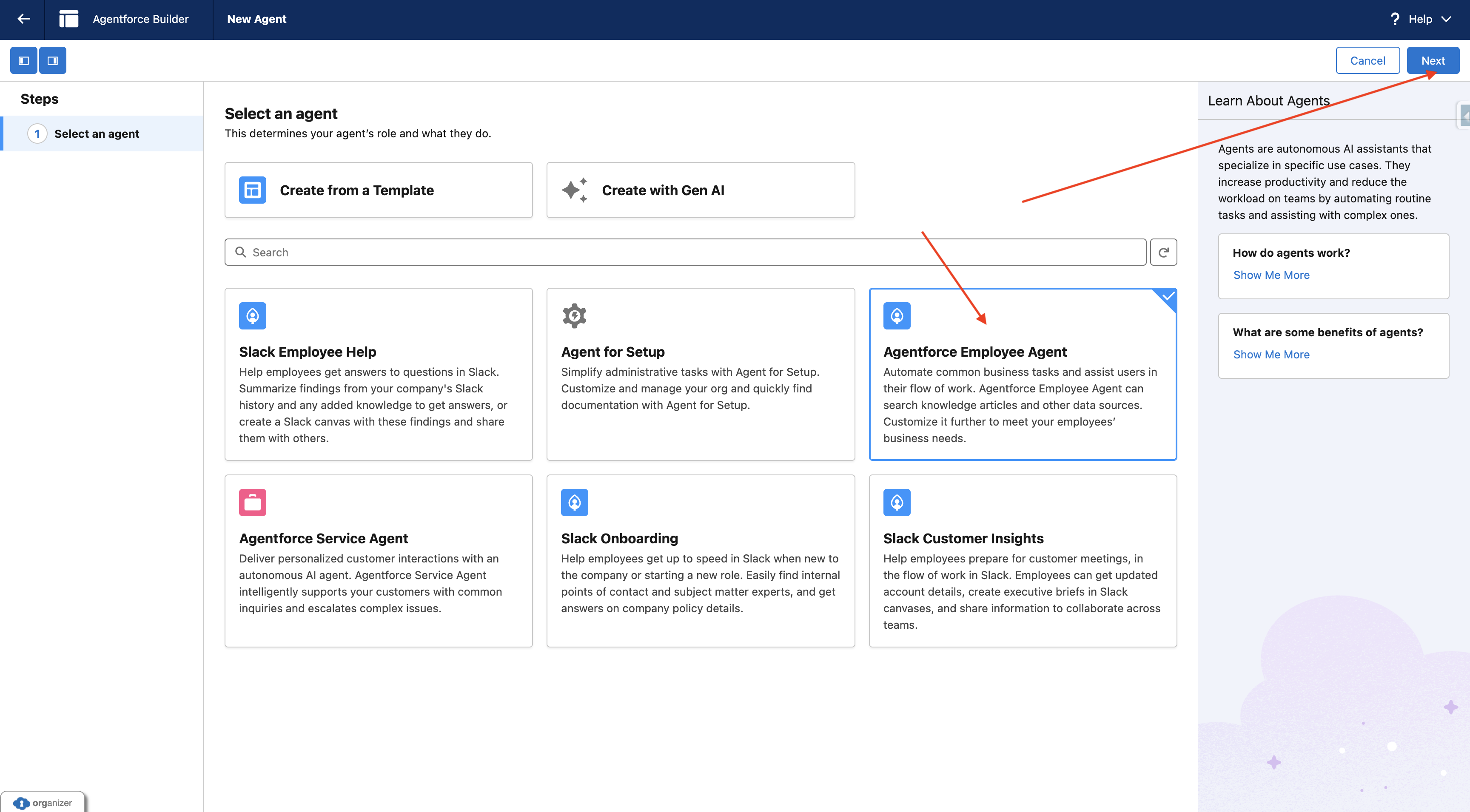
Long term, you’ll want to standardize on Employee Agents and retire the default.
Quick FAQ
Does the old Agentforce (Default) agent stop working after migration?
No. It remains available until Salesforce retires it. After June 17, 2025, it will simply no longer receive enhancements.
Can I revert?
Yes — migration doesn’t delete or disable the default agent, though continuing to use it is not recommended.
Does migration cause downtime?
No. The migration happens in the background and users can continue working normally.
Are all settings copied?
Most are — but custom prompts, renamed actions, and user visibility rules must be recreated or revalidated.
No Hard Deadline — But Don’t Wait
Salesforce’s messaging is clear: Agentforce (Default) will be retired soon, but there isn’t a public, fixed end-of-life date for when it will fully stop functioning.
Practically, it’s smarter to:
- Run the migration now, while the default agent is still available as a reference
- Test the new Employee Agent thoroughly with real users
- Clean up prompts, actions, and permissions at your own pace rather than under a deadline
What About Custom or Non-Default Agents?
This migration flow specifically targets the built-in Agentforce (Default) agent.
For custom internal agents you’ve created:
- They won’t be automatically removed
- It’s still a good idea to align them with the Employee Agent framework, especially if:
- They handle internal use cases similar to the default agent
- You want consistent access control and Trust Layer behavior
- You’re planning to use newer Agentforce features going forward
The migrated Employee Agent can serve as a baseline for modernizing your other internal agents.
Final Thoughts
Salesforce’s Agentforce Employee Agent is the new baseline for internal AI assistance in Salesforce. The good news is you no longer have to rebuild your default agent from scratch—the migration tool does most of the work.
Your job is to:
- Run the guided migration from Setup → Agentforce Agents → Get Started
- Review the new Employee Agent
- Recreate custom prompts, fix renamed actions, and reapply visibility
- Update any embedded or channel integrations
- Retire the default agent once you’re confident in the new one
If you need help planning your migration, reviewing your configuration, or designing Employee Agents that actually support how your teams work, contact Built With Intent.